
How to Safely Test Apps on a Shopify Staging Store
On this page
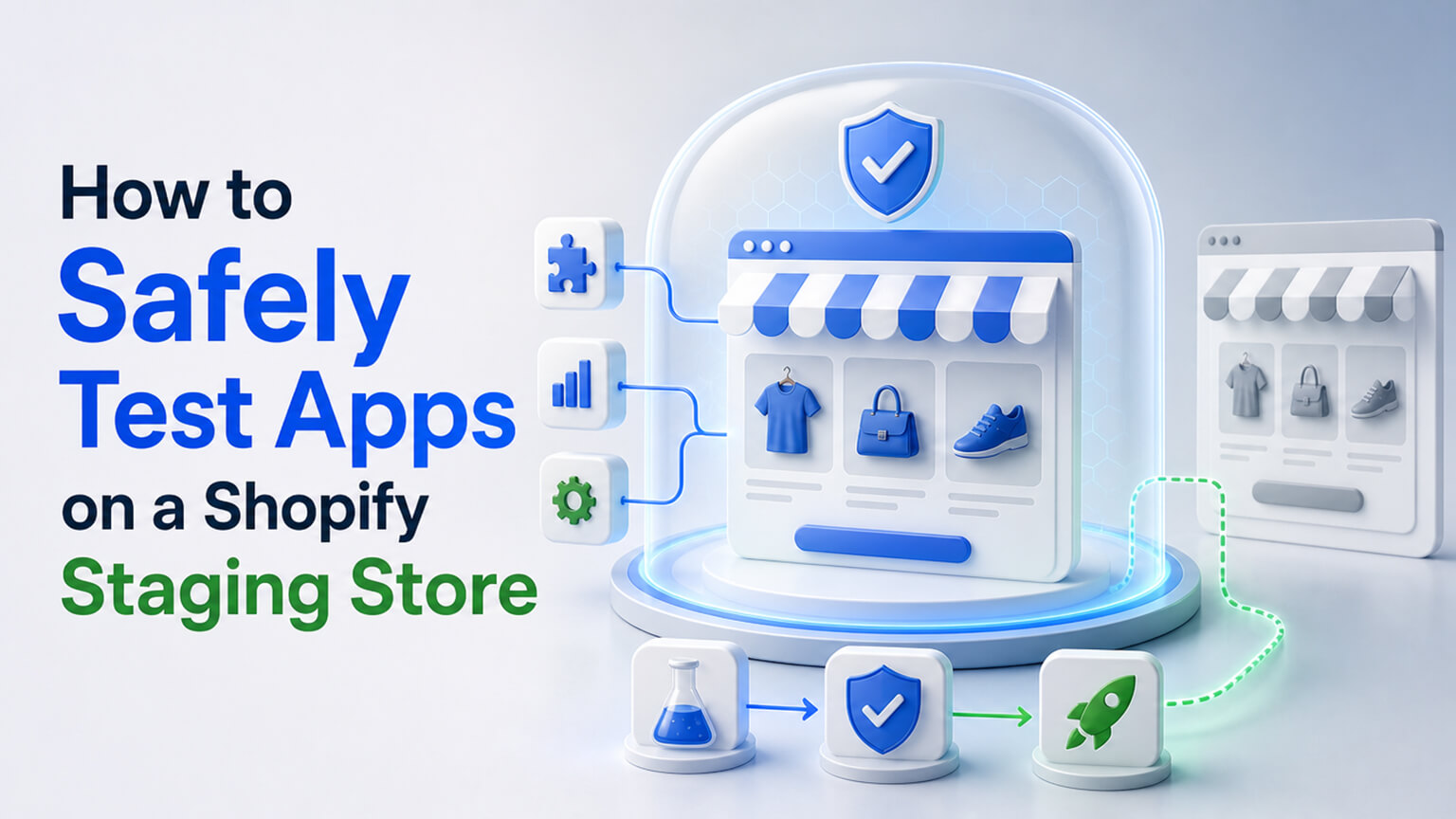
Installing an app directly on your live store is one of those small, easy actions that occasionally causes big problems. Apps add code to your storefront, integrate with your theme and other apps, and can affect performance, functionality, and even the checkout — so an app that conflicts with your theme, clashes with another app, slows your site, or misbehaves can degrade or break your live, revenue-generating store, sometimes in ways that aren’t immediately obvious. The safer approach, especially for anything but the most trivial apps, is to test apps on a staging store first: a non-live copy or development version of your store where you can install, test, and evaluate an app safely, without risking your live site. If the app works well (no conflicts, no performance hit, functions correctly), you install it on live with confidence; if it causes problems, you’ve caught them safely on staging, not on your live store. This is standard good practice for changes to a business-critical store, and it applies to apps as much as to code changes. This piece covers how to safely test apps on a Shopify staging store. (This connects to the app-sprawl and pre-launch-testing discussions; this focuses on safely testing apps via staging.)
This piece covers why testing apps on live is risky, what a staging store is (for Shopify), how to test apps safely on staging, and how to promote apps to live confidently. Because installing apps on live is risky, and staging testing catches problems safely — worthwhile for a business-critical store. Let me walk through it.
Why testing apps on live is risky
Installing apps directly on your live store carries real risks. Conflicts with your theme — apps add code that interacts with your theme, and an app can conflict with your theme (breaking layout, functionality, or display), degrading or breaking your live store — a risk you’d want to catch before it’s live. Conflicts with other apps — apps can conflict with each other (clashing code, competing functionality, JavaScript errors), and installing a new app can break existing app functionality or cause errors — a conflict best caught before affecting live. Performance impact — apps add code/bloat (as the app-speed discussion covers), and a heavy app can noticeably slow your live store (hurting Core Web Vitals, SEO, conversion) — an impact you’d want to assess before committing on live. Functional problems — an app may not work as expected, may misbehave, or may not fit your needs — problems you’d rather discover in testing than on your live store. Checkout and critical-function risk — some apps affect the checkout or critical functions (cart, etc.), and problems there directly block purchases (business-critical, as the cart/checkout discussions cover) — a serious risk to test before live. Hard-to-undo effects — some apps make changes (to theme code, data, settings) that aren’t cleanly undone by uninstalling (leftover code, as the app-sprawl discussion covers), so a problematic app can leave a mess even after removal. And live means real impact — any problem on live affects real customers and real revenue immediately (a broken store, lost sales, bad experience), so live problems are costly. So testing apps on live is risky because apps can conflict with your theme or other apps, hurt performance, malfunction, affect critical functions like checkout, leave hard-to-undo effects, and any problem immediately impacts real customers and revenue. So for anything but trivial apps, testing on live is a gamble with your live store — which staging testing avoids. So use staging to test apps safely, catching problems before they touch live. The next section covers what a staging store is.
What a staging store is (for Shopify)
A staging store is a non-live environment for testing (the concept, and how it works on Shopify). The concept — a staging (or development/test) store is a separate, non-live copy or version of your store where you can make and test changes (including installing apps) safely, without affecting your live store — a sandbox for testing before promoting changes to live. For Shopify specifically — Shopify’s options for staging include: development stores (free stores developers/partners can create for building and testing, which can be a copy of or similar to your store), duplicate/test stores (a separate store set up as a test environment), and for the theme specifically, unpublished theme copies (testing theme changes on a duplicate theme before publishing — though this is theme-level, not a full separate store). Note the nuance — Shopify doesn’t have a built-in one-click “staging environment” that perfectly mirrors your live store with all data (unlike some platforms), so staging on Shopify often means a development/test store (which may not have all your live data/config) or testing on a duplicate theme — a practical approximation, not always a perfect mirror. What you can test — on a staging/development store, you can install apps, test their functionality, check for conflicts (with the theme and other apps you’ve replicated), assess performance, and evaluate the app — safely, without affecting live. The limitation — the limitation is that a staging store may not perfectly replicate your live environment (data, all apps, exact config), so testing is a strong safeguard but not a perfect guarantee (some issues only appear with full live data/config) — still, it catches most problems. So a staging store is a separate, non-live environment (a Shopify development/test store, or for theme changes a duplicate theme) where you can install and test apps safely without affecting live — a strong safeguard, though not always a perfect mirror of live. So set up a staging/development store (or use duplicate themes for theme-level testing) as your safe environment for testing apps. The next section covers how to test apps on it.

How to test apps safely on staging
Testing an app safely on staging involves several steps. Install on staging first — install the app on your staging/development store (not live) first, so any problems occur in the safe environment. Test functionality — test the app’s functionality thoroughly: does it do what it’s supposed to, work as expected, and fit your needs? — evaluating whether the app is actually good and right for you. Check for conflicts — check for conflicts: does the app break your theme (layout, display, functionality) or clash with your other apps (errors, broken functionality)? — replicating your theme and key apps on staging to test conflicts (as much as staging allows). Assess performance — assess the app’s performance impact (does it noticeably slow the store, add heavy code? — check via performance testing, as the app-speed and Core Web Vitals discussions cover), so you know its bloat cost before committing. Test critical functions — if the app affects the cart, checkout, or other critical functions, test those thoroughly (a test purchase, checkout flow), since problems there are business-critical. Test on mobile and across scenarios — test the app on mobile (much traffic) and across relevant scenarios/pages, ensuring it works broadly. Evaluate holistically — evaluate holistically: does the app work well, without conflicts or unacceptable performance hit, and deliver value worth its cost/bloat (as the app-sprawl discussion covers)? — deciding whether to adopt it. And catch problems safely — if the app causes problems (conflicts, breakage, performance, malfunction), you’ve caught them on staging (safely), and can decide not to use it (or troubleshoot) without having affected live. So test apps safely on staging by installing there first, testing functionality thoroughly, checking for theme and app conflicts, assessing performance impact, testing critical functions (cart/checkout) and mobile, evaluating holistically (works well, no unacceptable conflicts/performance, worth the cost), and catching any problems safely. This staging testing reveals whether the app is good, compatible, performant, and worth adopting — before it touches live. So do this testing on staging, evaluating the app safely, so you only promote good, compatible, performant apps to live. The next section covers promoting to live.
How to promote apps to live confidently
After testing on staging, promote the app to live confidently (if it passed). Install on live only after passing staging — only install the app on live after it’s passed staging testing (works well, no unacceptable conflicts or performance hit, worth adopting), so you install with confidence that it’s good and compatible. Verify on live — after installing on live, verify it works correctly on live too (since live may differ slightly from staging — different data, all apps, exact config, as noted), testing its functionality, conflicts, performance, and critical functions on live to confirm (catching any live-specific issues). Monitor after installing — monitor the store after installing the app on live (performance, functionality, any issues), catching any problems the staging testing didn’t (given staging isn’t a perfect mirror), and addressing them. Be ready to remove — be ready to remove the app if it causes live problems the testing missed (and clean up leftover code, as the app-sprawl discussion covers), reverting safely. Install during low-traffic if risky — for apps affecting critical functions, consider installing/testing on live during lower-traffic periods (so any issue affects fewer customers), reducing risk. And keep it disciplined — keep the whole process disciplined (test on staging, promote to live, verify, monitor), applying it to app installations as good practice for a business-critical store. So promote apps to live confidently by installing on live only after passing staging, verifying on live (since it may differ), monitoring after installing, being ready to remove if needed, considering low-traffic timing for risky apps, and keeping the process disciplined. This promotes only tested, good apps to live, verifies on live, and catches any remaining issues — a safe, disciplined approach to adding apps. So follow this process — staging test, promote if passed, verify and monitor on live — adding apps to your live store safely and confidently, rather than gambling by installing untested apps directly on live. So the overall practice — test apps on staging first, promote good ones to live with verification and monitoring — protects your live, revenue-generating store from the risks of untested apps, which is well worth it for a business-critical store.
A worked example: catching a conflict before it went live
Picture a store about to add a new app — say, a bundling or upsell app promising higher AOV. The tempting move is to install it on the live store and see what happens. Instead, the team installs it on a development/test store first, replicated as closely as possible to live (same theme, the key existing apps that matter). Within an hour of testing, they find exactly the kind of problem that would have been ugly on live: the new app’s JavaScript conflicts with their existing cart-drawer app, throwing console errors and causing the cart drawer to occasionally fail to open on mobile. On a live store, that would have quietly suppressed some add-to-carts and cost real revenue — and it might have taken days to notice and connect to the new app. Caught on staging, it’s just a data point: they can decide not to use this app, look for a compatible alternative, or work with a developer to resolve the conflict, all without a single live customer affected.
Contrast that with the version where they’d installed it straight on live: the cart problem would have hit real shoppers immediately, the revenue impact would have accrued silently, and the eventual cleanup (diagnosing the conflict, removing the app, clearing its leftover code) would have been done under pressure. The staging test turned a potential live incident into a safe, informative evaluation. And even for apps that pass cleanly on staging, the same discipline pays off — the team promotes the ones that work to live, then verifies on live (since live has the full set of apps and real data staging may lack) and monitors briefly afterward, catching the rare issue that only appears with the full live configuration. The lesson is that the small extra step of staging-first testing repeatedly saves stores from self-inflicted live incidents, which is exactly why it’s standard practice for changes to a business-critical store — apps very much included.
When you can skip staging (and when you really shouldn’t)
Being pragmatic: not every app strictly requires a full staging cycle, and it helps to know where to apply the most rigour. For trivial, low-risk apps — a simple back-office tool that doesn’t touch the storefront, theme, checkout, or performance — the risk of installing on live is low, and testing can be lighter (though even then, a quick check and monitoring is wise). The staging discipline matters most, and should never be skipped, for the higher-risk cases: apps that inject significant code into the storefront, apps that affect the cart or checkout (where problems directly block purchases and are business-critical), heavy apps whose performance impact you want to measure before committing, apps that integrate deeply with your theme, and any app on a high-traffic, high-revenue store where a live problem is expensive. For those, testing on staging first is well worth it.
A sensible rule of thumb is to scale your caution to the app’s potential blast radius: the more of the storefront, checkout, performance, or critical functionality an app touches, and the more traffic and revenue at stake, the more you should test on staging before it goes near live. This mirrors the broader principle of treating a live, revenue-generating store as business-critical infrastructure — you don’t make risky changes directly on it when you can test them safely first. Combined with the app-sprawl discipline (as that discussion covers) — being deliberate about which apps you add at all — staging testing forms part of a mature approach to apps: add apps thoughtfully, test the non-trivial ones on staging before they touch live, promote only the good ones with verification and monitoring, and remove what you no longer need. That approach keeps your live store stable, fast, and uncluttered, and it turns app management from a series of live gambles into a controlled, low-risk process. For a store whose livelihood depends on its site working, that control is exactly what you want.
The bottom line
Installing an app directly on your live store is a small, easy action that occasionally causes big problems, because apps add code to your storefront, integrate with your theme and other apps, and can affect performance, functionality, and even the checkout — so an app that conflicts with your theme, clashes with another app, slows your site, malfunctions, or affects critical functions can degrade or break your live, revenue-generating store, sometimes in non-obvious ways, and some apps leave hard-to-undo effects even after removal. Any problem on live immediately affects real customers and revenue. The safer approach, for anything but trivial apps, is to test apps on a staging store first — a separate, non-live environment (a Shopify development/test store, or for theme-level changes a duplicate unpublished theme) where you can install and test apps safely without affecting live. Note that Shopify doesn’t offer a built-in one-click staging environment that perfectly mirrors live with all data, so staging often means a development/test store (which may not have all your live data and config) — a strong safeguard, though not always a perfect mirror. Test apps safely on staging by installing there first, testing functionality thoroughly (does it work and fit your needs?), checking for theme and app conflicts, assessing performance impact (bloat), testing critical functions (cart, checkout) and mobile, and evaluating holistically (works well, no unacceptable conflicts or performance hit, worth the cost) — catching any problems safely on staging rather than on live. Then promote apps to live confidently: install on live only after passing staging, verify it works on live too (since live may differ from staging), monitor after installing (catching any issues staging missed, given it’s not a perfect mirror), be ready to remove and clean up if needed, consider low-traffic timing for risky apps, and keep the process disciplined. This overall practice — test on staging first, promote good apps to live with verification and monitoring — protects your live, revenue-generating store from the risks of untested apps. For a business-critical store, that protection is well worth the extra step, turning app installation from a gamble on your live site into a safe, disciplined process. So test apps on staging before they touch live, and add apps with confidence rather than risk.
Frequently asked questions
Why shouldn’t I just install apps directly on my live store?
Because apps can cause problems that immediately affect your live, revenue-generating store and real customers. Apps add code to your storefront and integrate with your theme and other apps, so a new app can conflict with your theme (breaking layout or functionality), clash with another app (causing errors or broken features), noticeably slow your site (hurting Core Web Vitals, SEO, and conversion), simply malfunction or not fit your needs, or — most seriously — affect the cart or checkout in ways that block purchases. Some apps also leave hard-to-undo code behind even after you uninstall them. Any of these problems on your live store hits real customers and revenue immediately, and some aren’t obvious right away. Testing on a staging store first catches these problems safely, before they touch live — which is why it’s worth the extra step for anything but trivial apps.
What is a staging store on Shopify?
A staging store is a separate, non-live environment where you can make and test changes — including installing apps — safely, without affecting your live store. On Shopify, this typically means a development store (a free store developers and partners can create for building and testing), a duplicate test store set up as a testing environment, or, for theme-level changes specifically, a duplicate unpublished theme you test before publishing. One important nuance: Shopify doesn’t offer a built-in one-click staging environment that perfectly mirrors your live store with all its data and configuration (unlike some platforms), so staging on Shopify is often a development or test store that may not have all your live data and apps. That makes it a strong safeguard — it catches most problems — but not always a perfect mirror of live, which is why you also verify and monitor after promoting an app to live.
How do I test an app on a staging store?
Install the app on your staging or development store first (not live), then test thoroughly. Check its functionality (does it do what it’s supposed to, work as expected, and fit your needs?). Check for conflicts — does it break your theme’s layout or functionality, or clash with your other apps (replicating your theme and key apps on staging as much as possible to surface conflicts)? Assess its performance impact (does it add heavy code and noticeably slow the store — test via performance tools). If the app affects the cart, checkout, or other critical functions, test those thoroughly (a test purchase, the checkout flow). Test on mobile and across relevant pages and scenarios. Then evaluate holistically: does it work well, without unacceptable conflicts or performance hits, and deliver value worth its cost and bloat? If it causes problems, you’ve caught them safely on staging and can decide not to use it — without having affected your live store.
Once an app passes staging, is it safe to install on live?
Largely, but verify and monitor, because staging isn’t always a perfect mirror of live. Install the app on live only after it’s passed staging testing (works well, no unacceptable conflicts or performance issues, worth adopting), so you install with confidence. Then verify it works correctly on live too — since live may differ from staging in data, the full set of installed apps, and exact configuration, some issues only appear on live — testing its functionality, conflicts, performance, and any critical functions on the live store. Monitor the store after installing (performance, functionality, any issues) to catch anything the staging testing missed, and be ready to remove the app (cleaning up its leftover code) if it causes live problems. For apps affecting critical functions, consider installing during lower-traffic periods so any issue affects fewer customers. This disciplined promote-verify-monitor process safely adds tested apps to live.