Shopify App Development in USA: Custom Apps for Growing eCommerce Brands
June 12, 2026


Picture this—someone finds your store through Google, clicks a product link, and lands on a page that says “Page not found.” They close the tab. Sale gone. That’s the real cost of a 404 error, and most Shopify store owners don’t even know it’s happening.
Not all 404 pages are the same, though. A default Shopify 404 just shows an error. A well-built one brings the visitor back into your store, suggests products, and actually converts. There’s a massive difference between the two.
By the end of this guide, you will recognize where your damaged hyperlinks are hiding, the way to restore them without breaking something else, and the way to design Shopify 404 error pages that work for you instead of against you.
Most 404s don’t appear out of nowhere. They’re created — usually accidentally — during normal store management. The biggest culprits:
Deleting a product without redirecting it first is the #1 cause. Someone clicks an old blog link or Google result and hits a dead end. Changing a product’s URL handle does the same thing. Shopify lets you edit handles freely, but the old URL just dies unless you set up a redirect.
App conflicts are sneaky. Some apps create their own URL structures and then leave broken paths behind after you uninstall them. Collection updates, renamed categories, and old sale campaign pages all leave the same mess.
SEO rankings take a direct hit. Every backlink pointing to a dead page is wasted — that link authority disappears entirely instead of flowing to your live content.
Crawl efficiency suffers quietly. Google only crawls so many pages per visit. If it keeps running into 404s, it spends less time on pages that actually matter — your products, collections, and blog posts.
User experience is the most obvious damage. Nobody stays on a page that tells them the thing they wanted doesn’t exist. Bounce rate climbs, trust drops.
AI search visibility is increasingly important to think about. Tools like Google AI Overviews and Gemini pull from clean, well-structured stores. A site riddled with dead links rarely makes the cut.
Auditing doesn’t have to be complicated. Start with what you already have access to.
Google Search Console should be your first stop. Go to Coverage, look under Excluded, and find “Not found (404). ” These are URLs Google tried and failed to reach. Export the list — you’ll need it.
Shopify’s URL redirect report (Online Store → Navigation → URL Redirects) shows existing redirects but also helps you spot patterns in what’s been broken before.
Screaming Frog is worth downloading even for smaller shops. Run a move slowly, filter it out with the aid of 404 reputation codes, and you’ll have a complete image of every broken internal and external link in minutes.
Ahrefs or Semrush shines when you want to find broken backlinks—pages on other sites that link to URLs that no longer exist on your store. These are particularly painful because that external link equity is being wasted.
GA4 rounds it out. Create a report filtering page titles or paths containing “404” or “not found” to see which broken pages real shoppers are actually visiting.
Head to Online Store → Navigation → URL Redirects → Create URL Redirect. Put the broken old path in “Redirect from” and the correct live page in “Redirect to.” Always use 301 — it tells Google the move is permanent and passes the page’s authority to the new URL. Please click here Shopify 404 error pages for more info.
Large stores shouldn’t do this one by one. Download Shopify’s redirect CSV template, fill in your old and new URLs, and upload it. You can fix hundreds of broken links in one go. Worth every minute of spreadsheet work.
Redirects are a safety net, not a full solution. Go into your menus, banners, blog posts, and any hardcoded links and update the source URLs directly. A redirect adds a server hop — the original correct link is always cleaner.
Once your redirects are live, pull a broken backlink report from Ahrefs. For high-authority sites linking to dead pages, send a quick email asking them to update the link. Most webmasters are glad to fix it.
A good 404 page doesn’t apologize and disappear. It keeps the visitor moving. Here’s what needs to be on it:
A search bar is non-negotiable. If someone landed on a wrong URL, they probably still want to find something. Let them search immediately.
Navigation links to your main collections give orientation. Don’t make visitors figure out where to go — put the paths right in front of them.
Featured or bestselling products work surprisingly well on 404 pages. Someone who was already browsing is often open to discovering something new.
A clear, human-sounding message matters more than people think. Something like “This page packed its bags, but the good stuff is still here” beats a cold error message every time.
CTA buttons — “Back to Homepage,” “Browse All Products,” “Shop New Arrivals” — keep momentum going.
On mobile, spacing and button size matter. A clunky 404 page on a phone is just as bad as no 404 page at all.
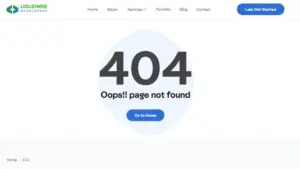
Go to Online Store → Themes → Edit Code → Templates → 404.liquid. That file controls everything on your 404 page. You can add Liquid snippets for product recommendations, pull in featured collections, or embed a predictive search bar.
Not a developer? That’s fine. Most modern Shopify 2.0 themes let you add and rearrange sections on the 404 template directly inside the theme editor — same drag-and-drop experience as your homepage.
For stores that want something more advanced, apps like “404 Page Builder” on the Shopify App Store handle this without requiring code.
The real goal isn’t just cleaning up the current mess — it’s stopping new ones from forming.
Before deleting any product, check its traffic in GA4. If it gets visits, redirect it. If it has backlinks, redirect it regardless of traffic. The two minutes it takes to set a redirect is worth far more than the SEO recovery later.
Avoid changing URL handles after a page goes live. Especially for products that rank. If you must rename something, set the redirect immediately in the same session.
Do a quarterly internal link audit. As your store grows, old blog posts and banners accumulate outdated links. A simple Screaming Frog crawl every few months catches problems before they become patterns.
When a product is discontinued, don’t just delete it. Redirect it to the closest available alternative or to the parent collection page.
The improvements show up across the board once you clear out broken links:
The crawl budget improves immediately. Google stops wasting time on dead URLs and starts indexing more of your live catalog. For large stores, this can meaningfully speed up how quickly new products appear in search.
Every redirect you set saves the link equity from the old URL and passes it forward. For stores that have been running for years, this recovery alone can lift rankings on affected pages.
Bounce rate drops when users don’t hit dead ends. A lower bounce rate is a signal that people are finding what they need—and search engines pick up on that.
AI search tools like Google’s AI Overviews favor well-maintained stores. Clean architecture, no broken paths, structured content — these are the signals that get you cited in AI-generated answers.
| Problem | Fix |
| Redirect set but still 404ing | Check for trailing slash mismatch or leading slash missing |
| Redirect loop (page redirects to itself) | Confirm destination URL is live and not pointing back to the redirect |
| Collection returning 404 after rename | Update the handle or create a redirect from the old collection path |
| App-generated URLs breaking after uninstall | Manually redirect the old app paths to relevant live pages |
| International store URL conflicts |
Audit hreflang tags and ensure subfolder or subdomain structure is consistent
|
Start with Google Search Console’s Coverage report, then run a Screaming Frog crawl for a complete picture of all broken URLs—both internal links and pages. Google has tried to reach.
Yes, and significantly. Broken pages waste crawl budget, kill link equity from backlinks, and push bounce rates higher — all of which feed into weaker rankings over time.
Any product with traffic history or backlinks should get a redirect without question. For pages Google never indexed and no one ever visited, a redirect is still good hygiene but less urgent.
One that doesn’t feel like a dead end. A search bar, clear navigation, a few product recommendations, and a friendly message together make a 404 page that recovers visitors rather than losing them.
No. Shopify will not create redirects on its own when you delete or rename pages. Every redirect has to be set manually or imported via CSV.
404 errors are one of those problems that grows quietly in the background while you’re focused on everything else. Left alone, they compound more dead pages, more wasted crawl budget, more visitors bouncing, and more link equity disappearing. Please click here Shopify 404 error pages for more info.
The restoration isn’t always complex. Audit with Search Console and Screaming Frog, set 301 redirects for each damaged URL that is subject, construct a 404 page that clearly helps site visitors, and make quarterly audits an addiction.
Do the four things consistently, and your shop will rank higher, hold site visitors longer, and get better sales you did not even recognize you had been dropping. That’s a pretty good return for some hours of cleanup work.